SPLITSIES

Drop in a video or an audio file. Get the music, the dialogue and the sound effects back as separate tracks, each one split again and named.

DOWNLOAD FOR MAC FOR EARLIER MACOS VERSIONS

2.3 GB. Apple silicon. Every model is inside, nothing else to install. On macOS 13, use the second button; it runs on the processor and is slower.

Hear the dialogue without the music · Replace a score in iMovie

How do I remove background music and keep the dialogue on Mac?

If you still have an edit with separate audio tracks, mute the music there. If all you have is a finished video, drop it into Splitsies and solo Dialogue on the bench. Hear what that does to this scene.

VIDEO, 1 MINUTE, WITH SOUND

The same few seconds of a clip as the mix, then the music, the voice and the sound effects alone.

What do you want to keep?

Speech in sync with the picture

Solo Dialogue and listen to a line where the score is loud. Start with Bleed at 0. If the voice sounds thin, bring the bleed up a little and check whether too much music comes back.

Export the dialogue as a full-length WAV with silence. Place it at the start of the original clip in your editor and mute the clip’s original audio. The gaps before and between lines keep the speech in time.

Voices and scene sounds under a new score

Listen to Dialogue and Sound Effects separately. Check a door slam or footstep under a line of speech. Export the tracks you need full length, place them at the same start point, and mute the original mix. Add the new score on its own track so you can change its level under each line.

Just one line for another edit

Find the speaker’s row and audition the line. Choose the chopped-clip layout and use the timecode to locate the corresponding moment in the picture. Listen to the first and last syllables before cutting it into the new edit.

How do I replace the music in iMovie and keep the voices and footsteps?

Start with the iMovie timeline. If you added a song beneath the picture, select that song and lower its volume to zero. Play a line of dialogue. If the voice and footsteps are still there, you can add your replacement music now.

If the song came with the video file, detaching the audio moves the whole soundtrack onto a green clip. The voice, footsteps and music are still mixed together. For that case, use the finished video in Splitsies.

  1. Pick one difficult line. Listen where someone speaks over both the score and a short sound, such as a door closing. Solo Dialogue, then Sound Effects. Listen for the last syllable, the door hitting the frame and any melody that leaks through.
  2. Export two tracks. Keep Dialogue and Sound Effects as full-length WAV files with silence. Leave out Music. The silence before the door closes is what puts that sound in the right place later.
  3. Put the sound back under the picture. In iMovie, set the original clip’s volume to zero. Drag both WAV files beneath the video, lining up their left edges with the start of the same untrimmed source clip. If your picture starts halfway through the source, trim the same lead-in from both WAVs.
  4. Check before adding the score. Watch the door close and listen for the impact. If speech sounds doubled, check for a second copy of the original audio. If the old tune is audible in the effects track alone, lower that track around the line. Add the new music only after the speech and door sound right together.
Audition two exported WAVs together before opening iMovie

Choose short, full-length extracts of the same scene with the same start point. Playback starts both files together. Switch the effects on and off to hear whether the old score is coming through that track. The files stay in this browser.

Apple’s guide to detaching audio · Adjust clip volume in iMovie

WATCH A SPLIT, START TO FINISH

A 15 second clip goes in, gets split, soloed, turned up and exported. Narrated.

VIDEO, 1 MINUTE 31, WITH SOUND

A LOOK AROUND

Four screenshots. Press one to see it large.
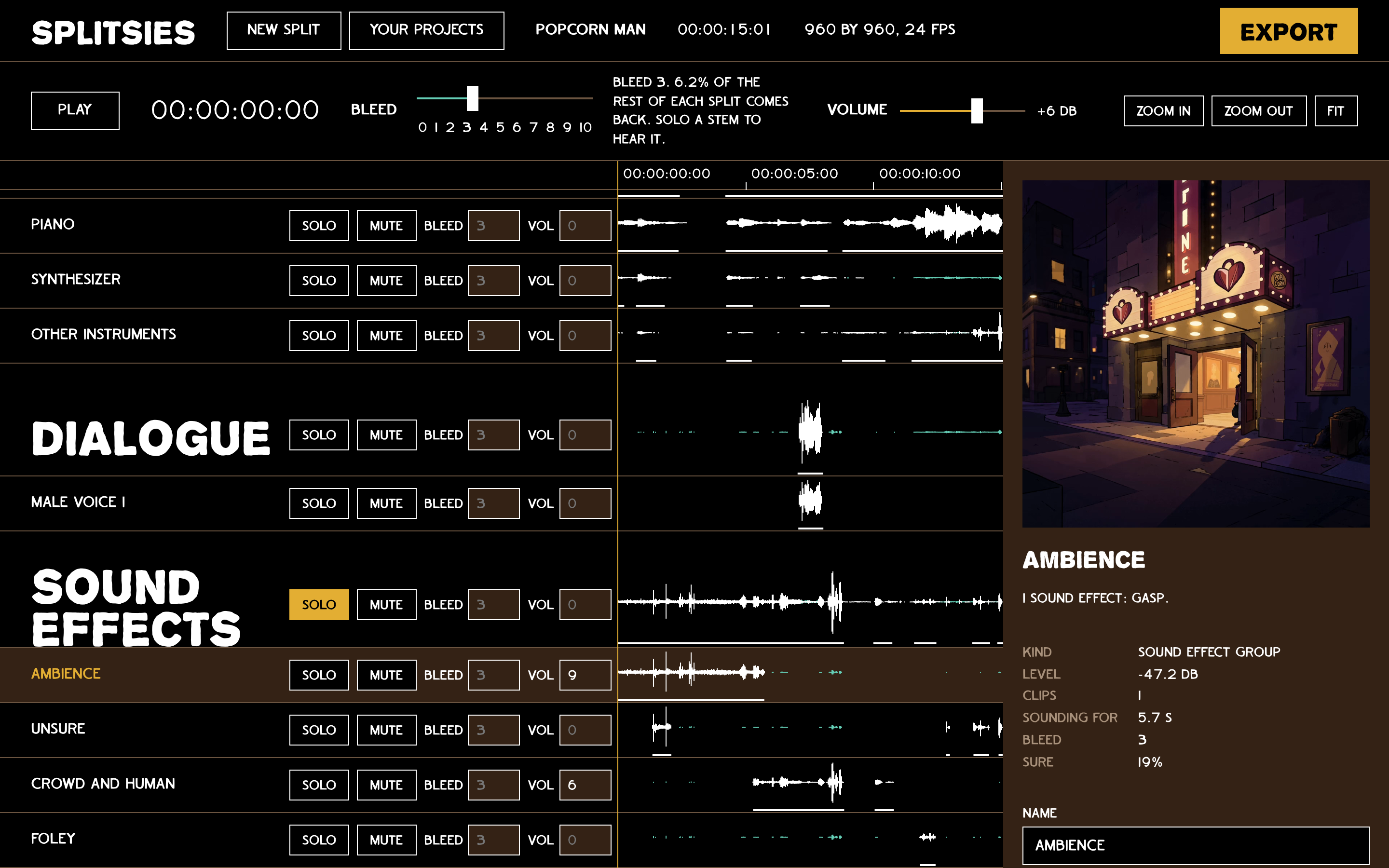
SCREENSHOT The Splitsies bench with a 15 second AI-generated cartoon clip split into music (piano, synthesizer, other instruments), dialogue (one male voice) and sound effects, each on its own row with solo, mute, bleed and volume next to its waveform. Sound effects is soloed, the overall volume is at plus 6 dB and one row is turned up 9 dB.
THE BENCHEvery sound on its own row with solo, mute, bleed and volume. Here sound effects is soloed and turned up.
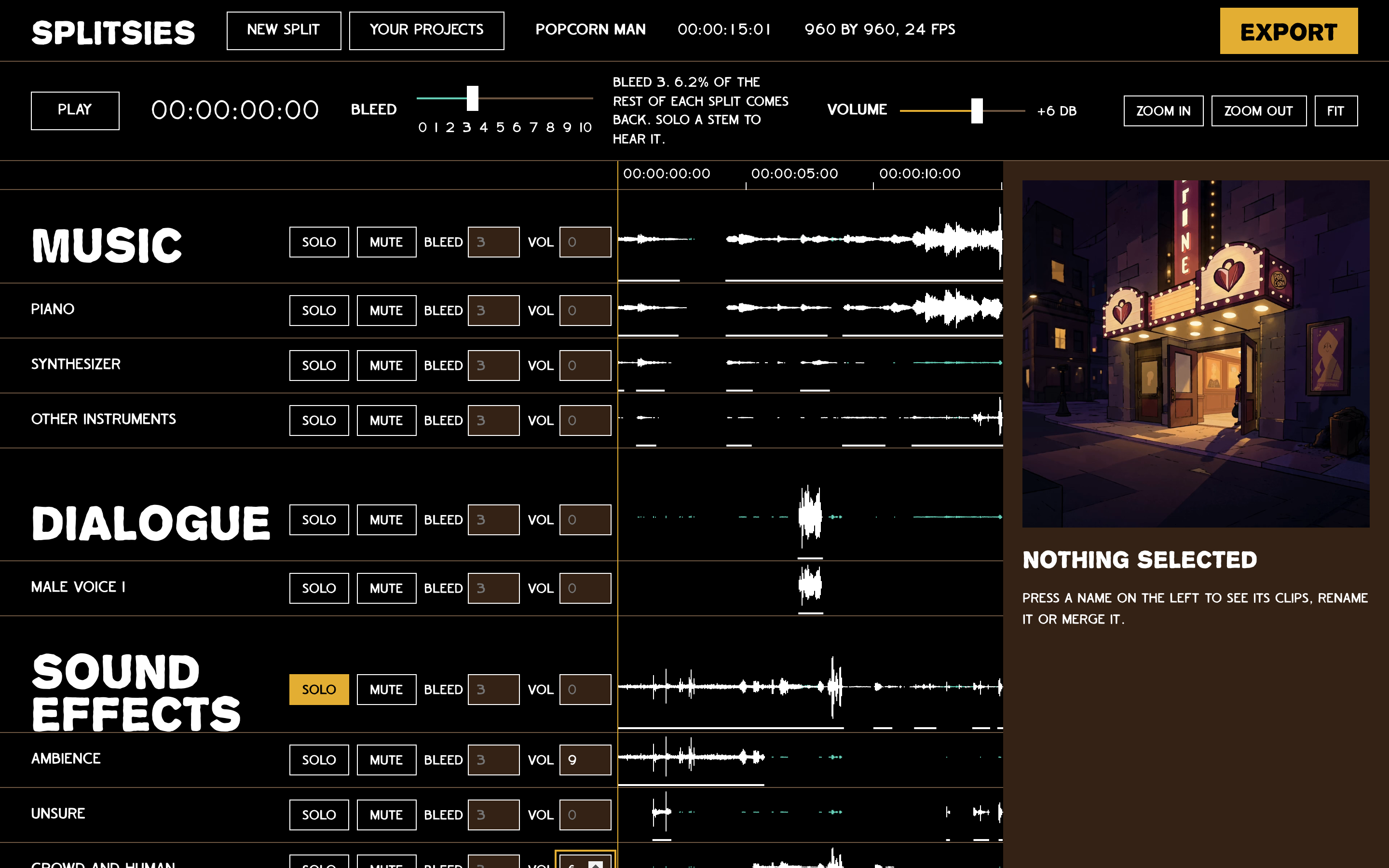
SCREENSHOT The bench with the AMBIENCE sound effect group selected. The panel on the right lists its kind, level, number of clips and how sure the naming is, with a box to rename it.
EVERY CLIP, TIMEDPress a name to see its clips with timecodes, how sure the name is, and a box to rename or merge it.
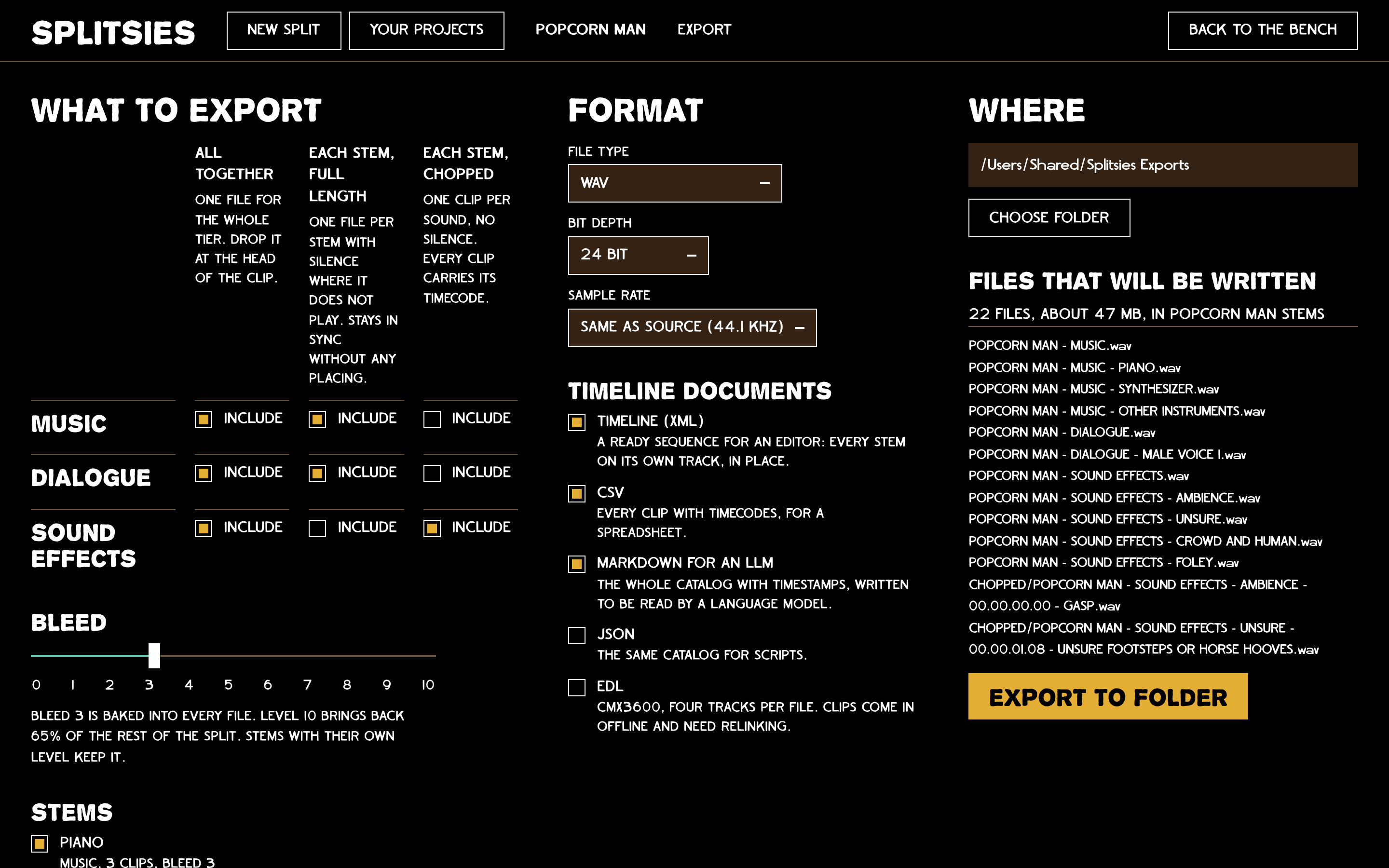
SCREENSHOT The export screen: layouts per tier, a bleed slider from 0 to 10, file type, bit depth, sample rate, timeline documents, the folder, and the list of files that will be written.
EXPORTPick the layout for each tier, the bleed, the format and the folder. The list shows every file before it is written.
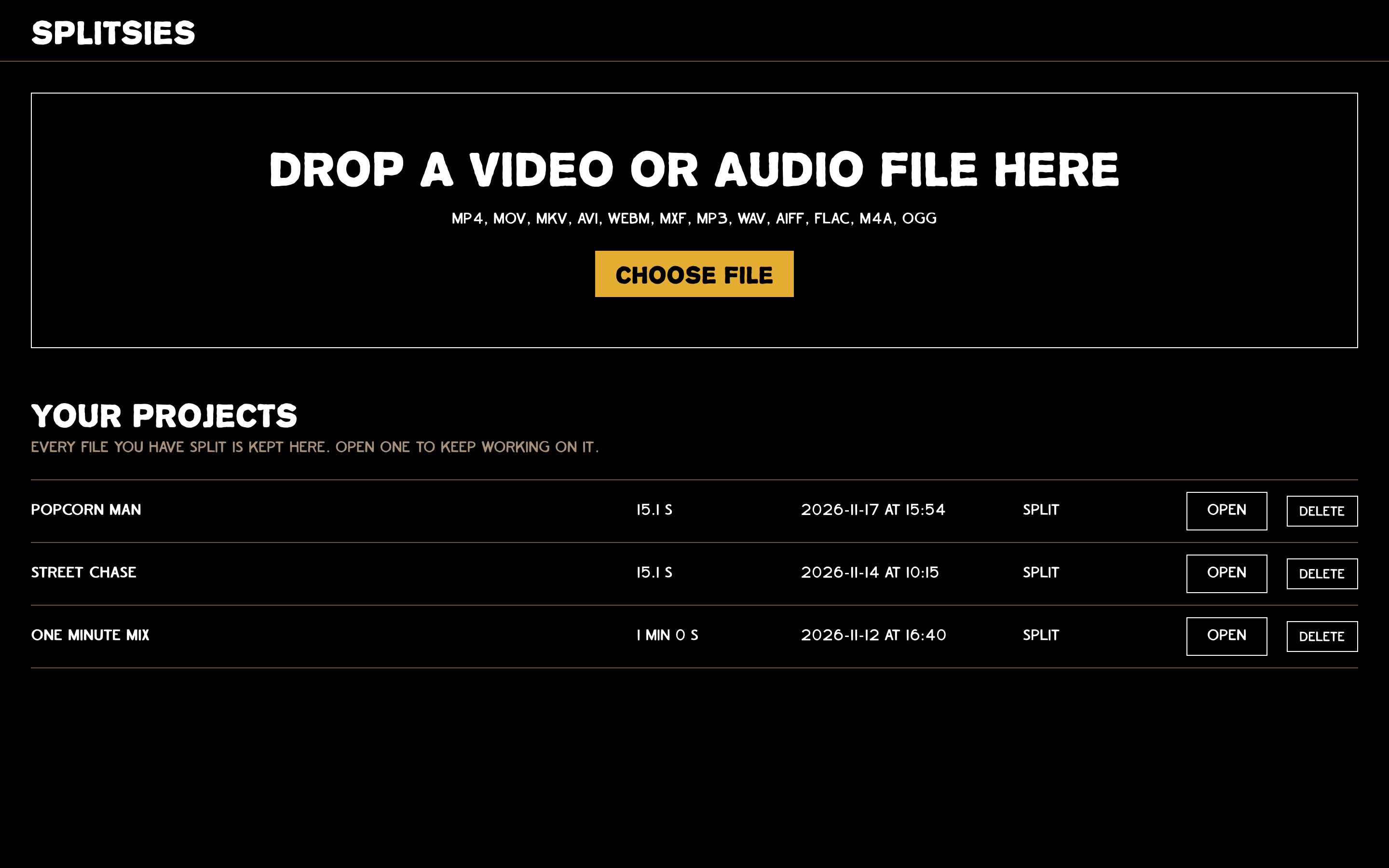
SCREENSHOT The first screen: a box to drop a video or audio file, and under it the list YOUR PROJECTS with three earlier splits, each with OPEN and DELETE.
YOUR PROJECTSEvery file you split is kept. Open one to keep working, or drop in the next file.

WHAT COMES OUT

MUSIC
Each instrument on its own track: drums, bass, guitar, piano, organ, synthesizer, strings, cello, harp, trumpet, trombone, tuba, flute, oboe and more. What cannot be pulled apart is kept and labelled with what it sounds like.
DIALOGUE
Each speaker on their own track, named MALE VOICE 1, FEMALE VOICE 1, ROBOT VOICE 1, with every line timed.
SOUND EFFECTS
Each sound found, timed and named, then grouped: impacts, vehicles, machines, doors, weather, ambience. Three models vote on every name, and a sound they cannot agree on is marked UNSURE with both guesses.

HOW IT WORKS

BLEED 0 TO 10
0 is a hard cut. 10 brings back 65% of everything else in that split, so a stem does not sound hollow. You hear it before you export it.
VOLUME
One slider for the whole mix and a box on every row, so a quiet sound effect can be turned up to check it. It changes what you hear, not the files.
THREE LAYOUTS
All together as one track. Each stem full length with silence, so it drops in already in sync. Or chopped into clips, each carrying its timecode.
A CATALOG
Every stem and clip listed with timecodes as CSV, JSON and a Markdown file written for a language model to read.
IT LEARNS NAMES
Rename a voice or a sound once and the next file uses your name for it. Point it at a folder of your own named sound effects and it learns those too.
ON YOUR MAC
Every model is inside the app. Nothing is uploaded. No account.
FILES
In: MP4, MOV, MKV, AVI, WEBM, MXF, MP3, WAV, AIFF, FLAC, M4A, OGG. Out: WAV, AIFF, FLAC, MP3, M4A, or MOV and MP4 with the picture.

BEFORE YOU DOWNLOAD

It needs a Mac with Apple silicon and macOS 13 or later. On a Mac Studio M3 Ultra a 15 second clip takes about 40 seconds to split and a 2 minute 38 second scene takes about 4 minutes.

The app is not signed with Apple yet. The first time, right-click it in Applications and choose Open.

Splits are made by models, and models make mistakes: a quiet instrument can be missed, a sound can get the wrong name. Listen before you ship, and rename what is wrong so the catalog learns.